> ## Documentation Index
> Fetch the complete documentation index at: https://info.invictai.io/llms.txt
> Use this file to discover all available pages before exploring further.
# Cloning
Cloning allows users to duplicate AI agents and their configurations. This functionality enables instant deployment and customisation of AI agents.
## What Gets Cloned
When you clone an AI agent, the following elements are duplicated:
* Knowledge base (files)
* System message
* LLM parameters
* Other configurations
Cloning creates an exact copy of the original agent's setup, providing a quick
starting point for customization or deployment.
## Cloning and Visibility
The ability to clone an AI agent is governed by two key settings:
1. **Open Source Setting**: Determines if others can clone your AI agent.
2. **Visibility Setting**: Controls who can access your AI agent.
If your AI agent's visibility is set to private, it cannot be cloned by
others, regardless of the open source setting. Private agents are not visible
to other users.
## How to Clone an Individual Agent
There are two methods to clone an individual agent:
Open the agent's info modal and click the "Clone" button.
Within the ChatUI, click the clone button in the top right corner.
## Cloning Agent Teams
If an agent has AI teammates and is open source, you have the option to clone either the individual agent or the entire Agent Team.
Open the agent's info modal.
Select whether to clone the individual agent or the entire Agent Team.
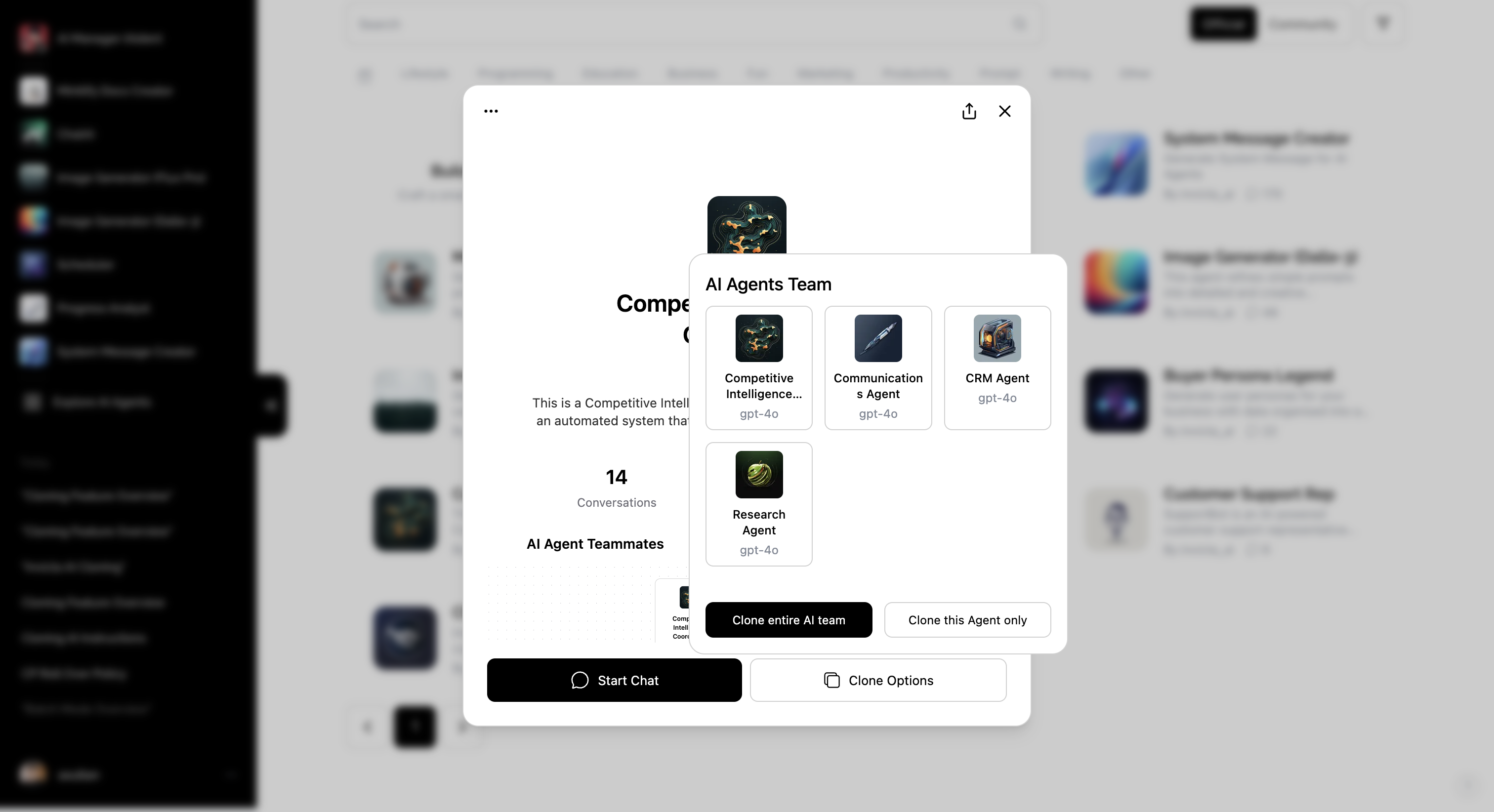 When cloning an entire agent team, every agent within the team will be cloned.
Only "downstream" agents (those to whom the current agent delegates, and their
subsequent delegates) will be cloned. "Upstream" agents (those that delegate
to the current agent) will not be cloned.
To share a complete team of agents for cloning, share the most upstream agent.
## Controlling Cloning Permissions
The ability to clone an agent is determined by its "Open Source" or "Closed Source" status.
Open the Agent Builder when creating or editing an agent.
Find the "Advanced Options" section.
Choose between "Open Source" or "Closed Source" and save the Agent.
When cloning an entire agent team, every agent within the team will be cloned.
Only "downstream" agents (those to whom the current agent delegates, and their
subsequent delegates) will be cloned. "Upstream" agents (those that delegate
to the current agent) will not be cloned.
To share a complete team of agents for cloning, share the most upstream agent.
## Controlling Cloning Permissions
The ability to clone an agent is determined by its "Open Source" or "Closed Source" status.
Open the Agent Builder when creating or editing an agent.
Find the "Advanced Options" section.
Choose between "Open Source" or "Closed Source" and save the Agent.
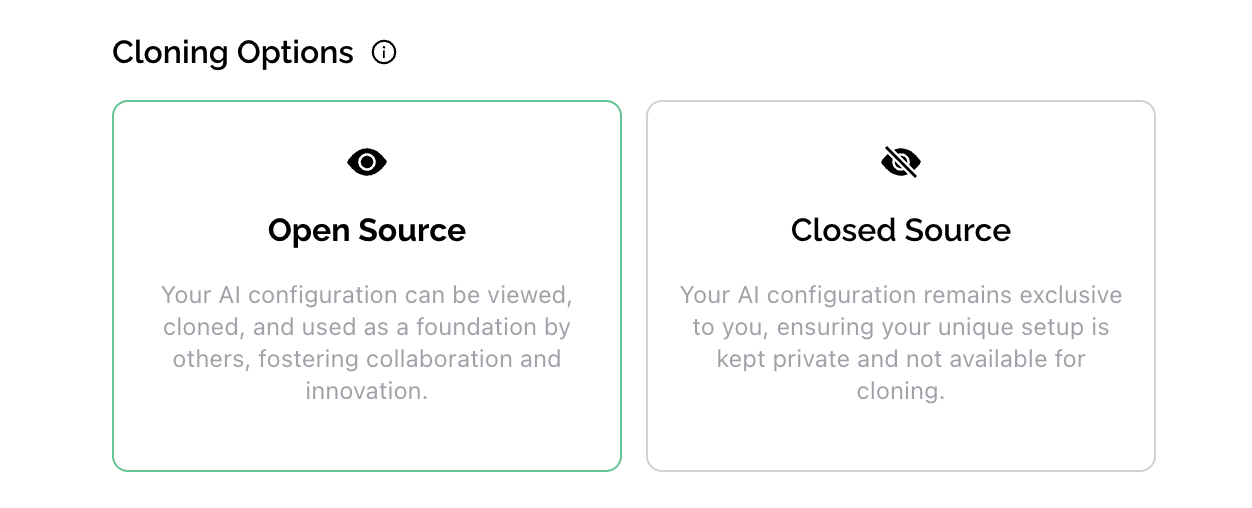 By default, agents are set to "Open Source".