> ## Documentation Index
> Fetch the complete documentation index at: https://info.invictai.io/llms.txt
> Use this file to discover all available pages before exploring further.
# Setting Up Integrations
This guide provides instructions for setting up integrations for all supported platforms.
## Basic Setup Process
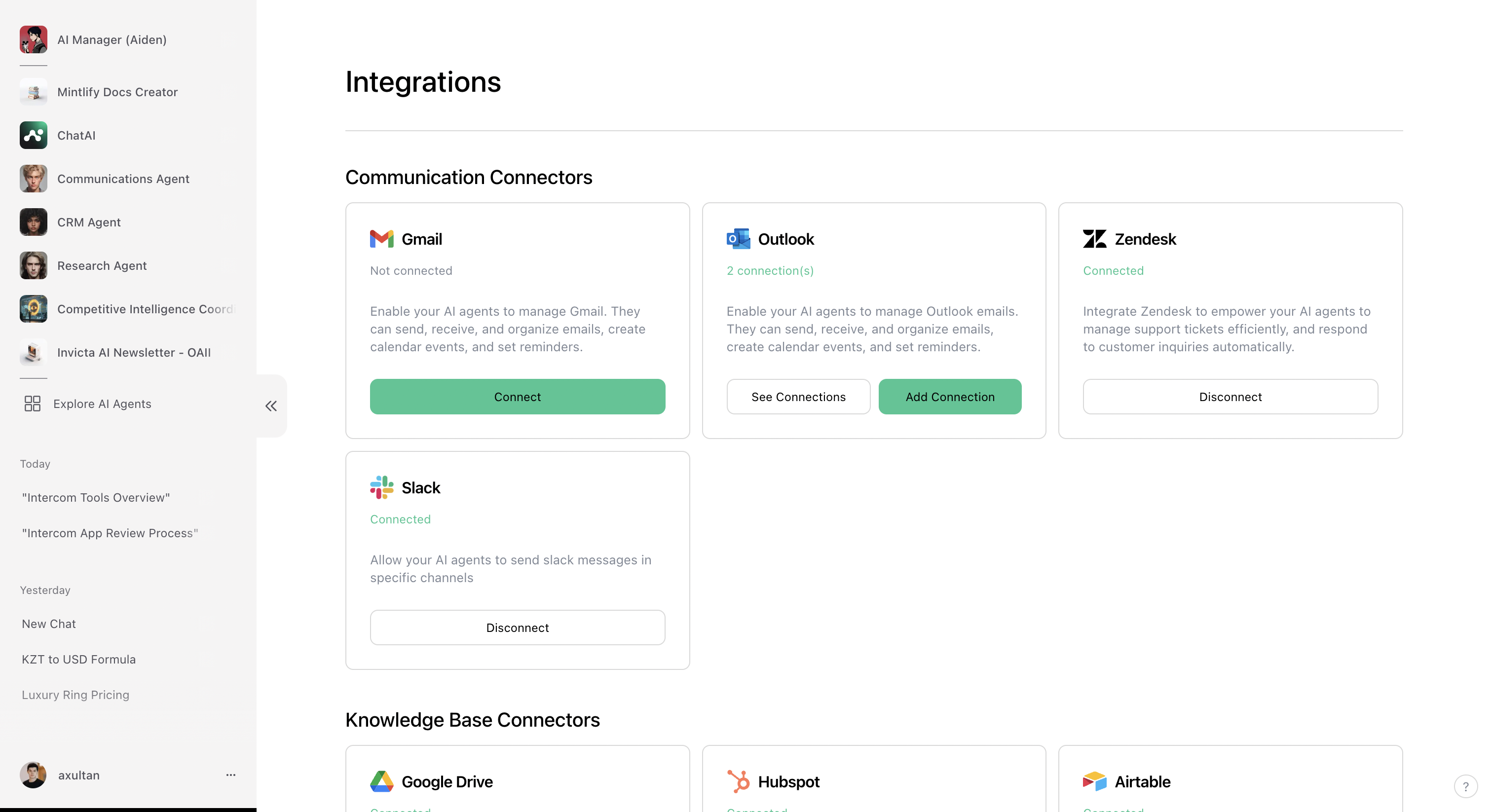
Click on the profile menu in the bottom left corner and select
"Integrations".
 On the Integrations page, find the specific integration you want to connect
and click "Connect". Follow the provided instructions to complete the
connection.
On the Integrations page, find the specific integration you want to connect
and click "Connect". Follow the provided instructions to complete the
connection.
 Once connected, you can now add tools and triggers associated with this
integration to your agents.
## Multiple Account Connections
Some integrations support connecting multiple accounts, allowing agents to use different accounts for various tools or triggers.
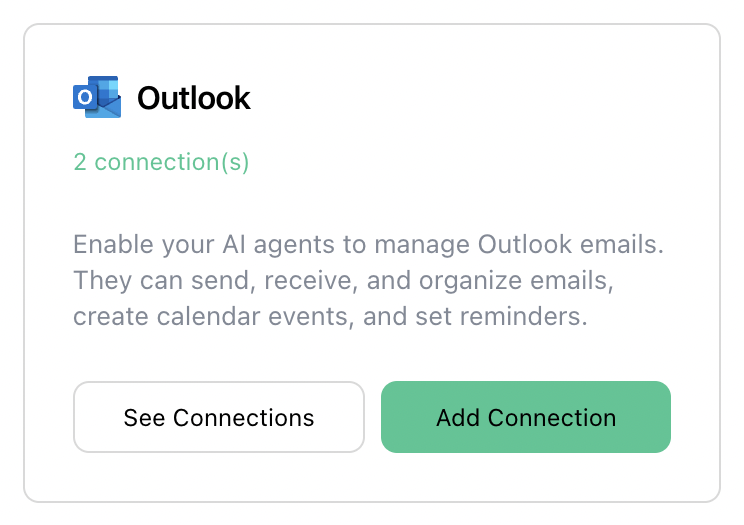
Integrations supporting multiple accounts are indicated by an additional "See
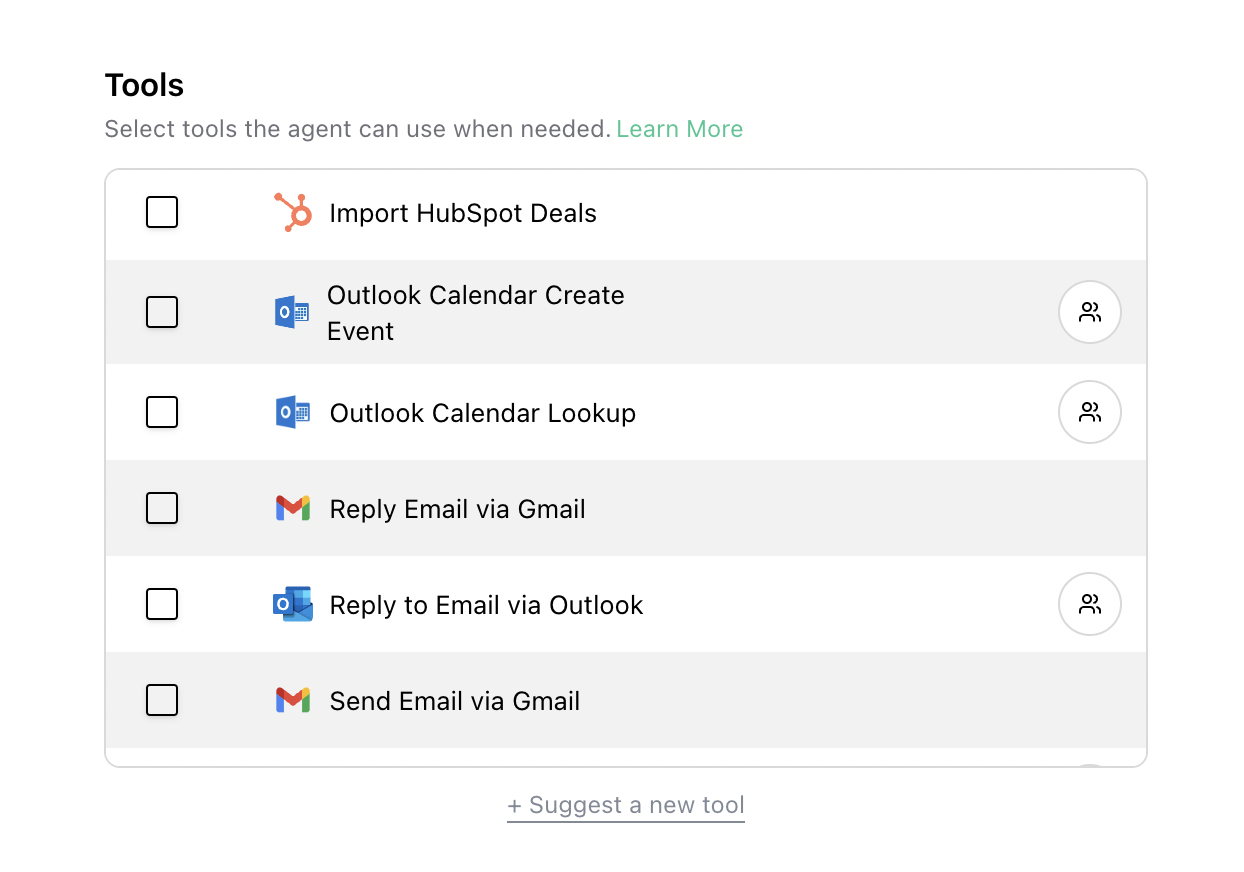
Connections" button on the integration page. In the agent builder, these
tools/triggers are marked with a "👥" icon.
### Setting Up Multiple Accounts
Add two or more accounts via the Integrations page as described in the basic
setup process.
When adding a tool or trigger to an agent, a popup will appear prompting you
to select the account for that specific tool/trigger.
Once connected, you can now add tools and triggers associated with this
integration to your agents.
## Multiple Account Connections
Some integrations support connecting multiple accounts, allowing agents to use different accounts for various tools or triggers.
Integrations supporting multiple accounts are indicated by an additional "See
Connections" button on the integration page. In the agent builder, these
tools/triggers are marked with a "👥" icon.
### Setting Up Multiple Accounts
Add two or more accounts via the Integrations page as described in the basic
setup process.
When adding a tool or trigger to an agent, a popup will appear prompting you
to select the account for that specific tool/trigger.
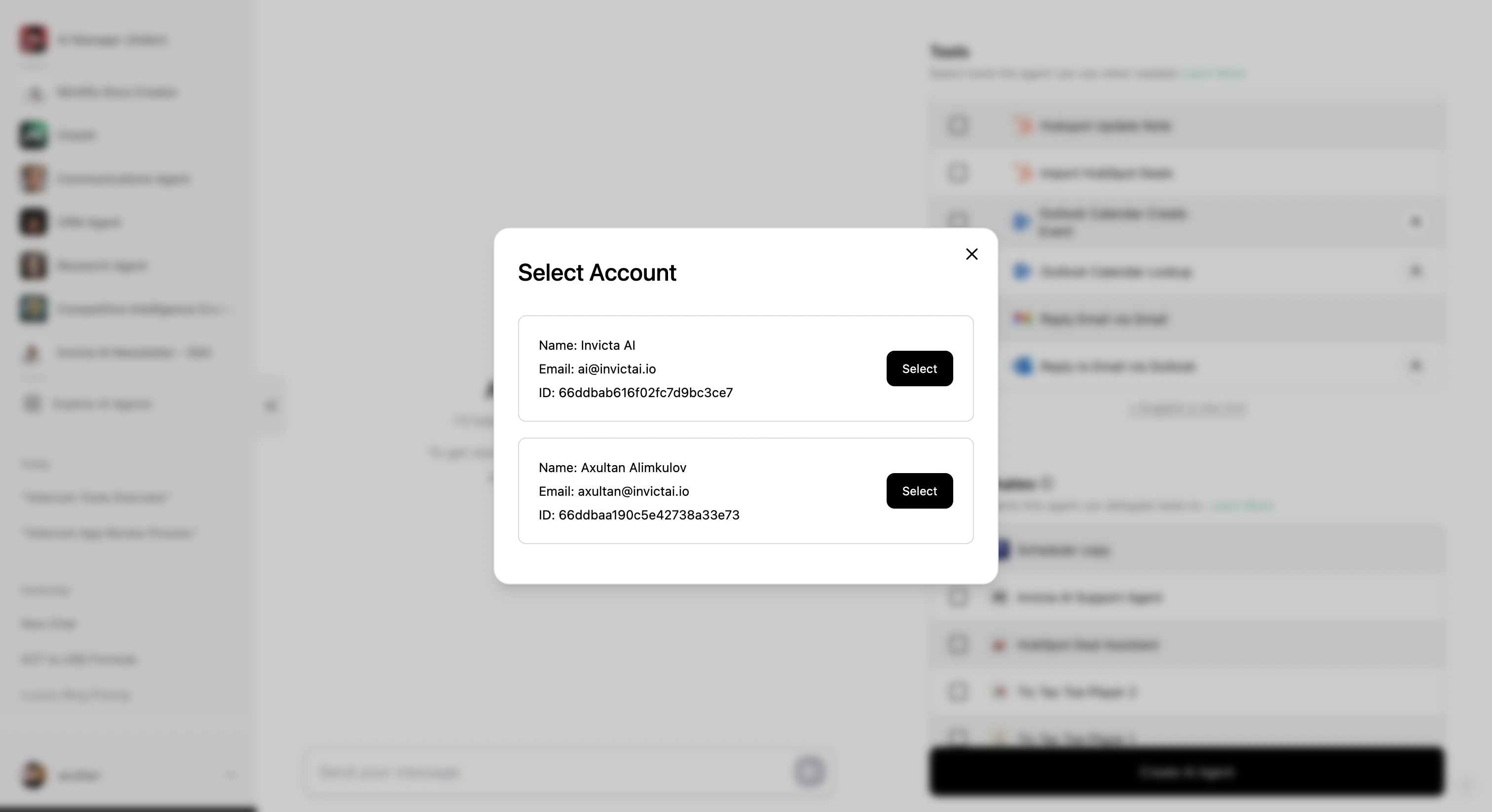 To change the account used, click the "👥" icon next to the tool/trigger and
select the desired account.
## Troubleshooting
If you encounter persistent errors with an integration:
1. Try reconnecting to the integration via the Integrations page.
2. If the issue persists, [please contact us](/help/how-can-i-contact-the-invicta-ai-team). We will respond within 15 minutes.
To change the account used, click the "👥" icon next to the tool/trigger and
select the desired account.
## Troubleshooting
If you encounter persistent errors with an integration:
1. Try reconnecting to the integration via the Integrations page.
2. If the issue persists, [please contact us](/help/how-can-i-contact-the-invicta-ai-team). We will respond within 15 minutes.